Printing a cheque sounds old school, right? But here's the truth – businesses still write and issue thousands of cheques every single day. Rent, vendor payments, employee reimbursements, security deposits… the list never ends.
The problem? Most people still handwrite cheques.
Handwriting takes time. It causes mistakes. And honestly? It just doesn't look very professional.
I remember my first business cheque. I messed up the date twice. Then I wrote the wrong amount. By the time I got it right, I had wasted three cheque leaves and fifteen minutes of my life. For one single payment.
That's when I started looking for a better way.
Turns out, printing a cheque is incredibly easy. You don't need expensive software. You don't need a special printer. You just need to know the right steps.
Let me show you exactly how to print a cheque at home or in your office – step by step.
What You Will Need Before You Start
Before we jump into the steps, keep these things ready:
Blank cheque paper – You can buy this from any stationery shop or order online. One pack usually has 50-100 pages.
A standard printer – inkjet or laser. Both work perfectly fine.
Cheque printing software – This is optional but highly recommended. I will explain why in step 3.
Your bank account details – Account number, bank code, payee name, etc.
That's it. Nothing fancy. No special setup needed.
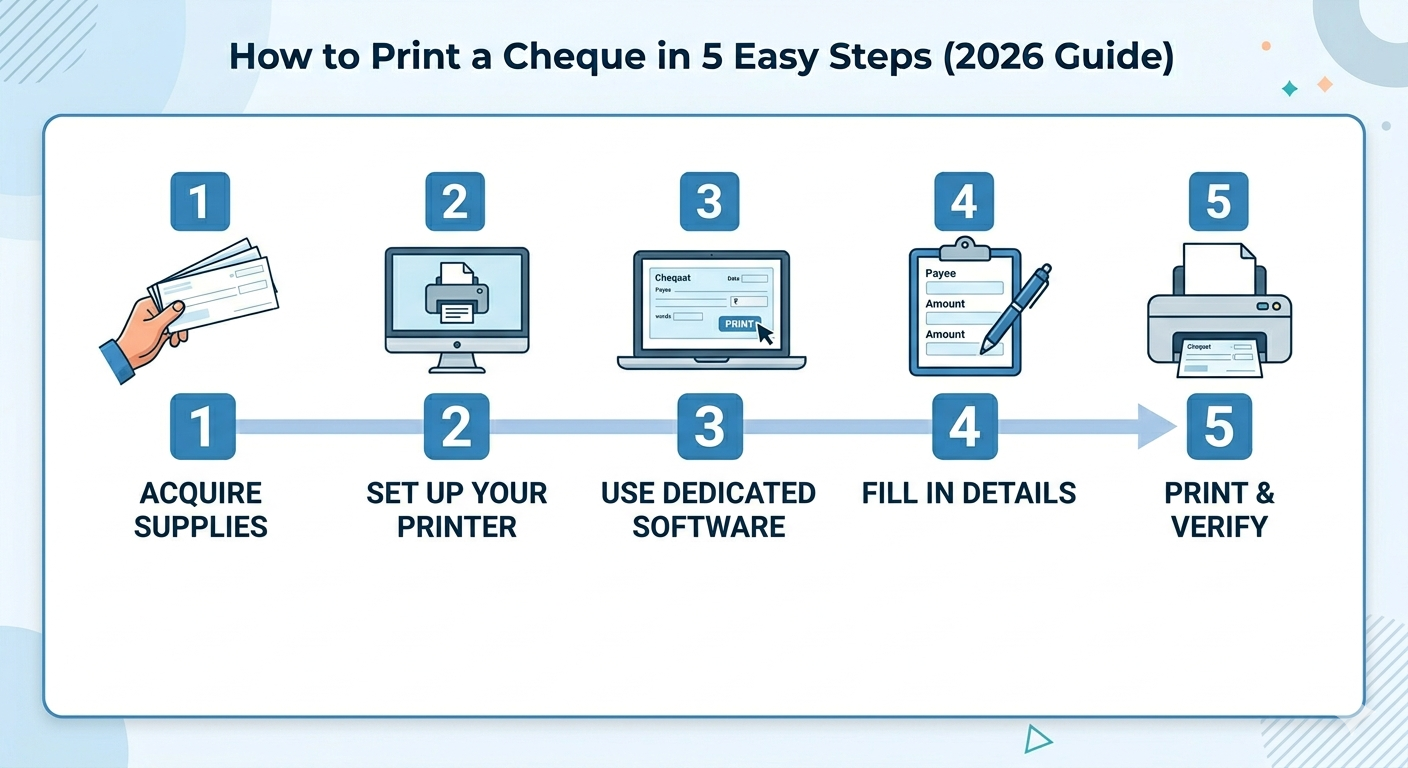
How to Print a Cheque in 5 Easy Steps
Step 1: Open a Blank Cheque Template
The first step is simple. Open a blank document in Microsoft Word, Google Docs, or any text editor.
But here's a small problem – these tools are not made for cheques. You will spend hours adjusting margins, font sizes, and alignment. Trust me. I have been there. It is painful.
A better way? Use a ready-made cheque printing template. Many cheque printing software tools give you free templates. You just open the software, and a blank cheque appears on your screen. No setup. No alignment issues.
If you want to use Word, search for "cheque printing template for Word" and download one. Just be prepared to adjust the layout a few times.
Step 2: Fill in the Payee Details
Before learning how to print a cheque, it helps to understand how to write a cheque correctly. The payee name, date, amount in numbers, and amount in words must all be entered accurately before printing.
Once your blank cheque is ready on screen, start filling in the details:
Payee Name – The person or company you are paying. Write the full name exactly as it appears on their bank account. Do not use short forms.
Example: "ABC Trading Company" – not "ABC"
Date – Current date or the date you want the cheque to be valid from. Cheques are usually valid for three to six months from the date written depending on local banking rules.
Amount in Numbers – Write the exact amount. For example: 5,750.00
Be very careful here. One wrong digit and the cheque is useless.
Amount in Words – This is the trickiest part for most people. Write the amount in words. Start from the left, leave no gaps, and draw a line after the last word.
Example: Five Thousand Seven Hundred Fifty Only ____________
Pro tip: Always write "Only" at the end. This prevents anyone from adding extra numbers after your amount.
Step 3: Use Cheque Printing Software (Highly Recommended)
Here is the honest truth.
You can print cheques using Word or Google Docs. But you will waste at least 30 minutes on alignment for every single cheque. The date will print slightly left. The amount will shift down. The payee name will cut off the edge.
I wasted so many cheque leaves this way.
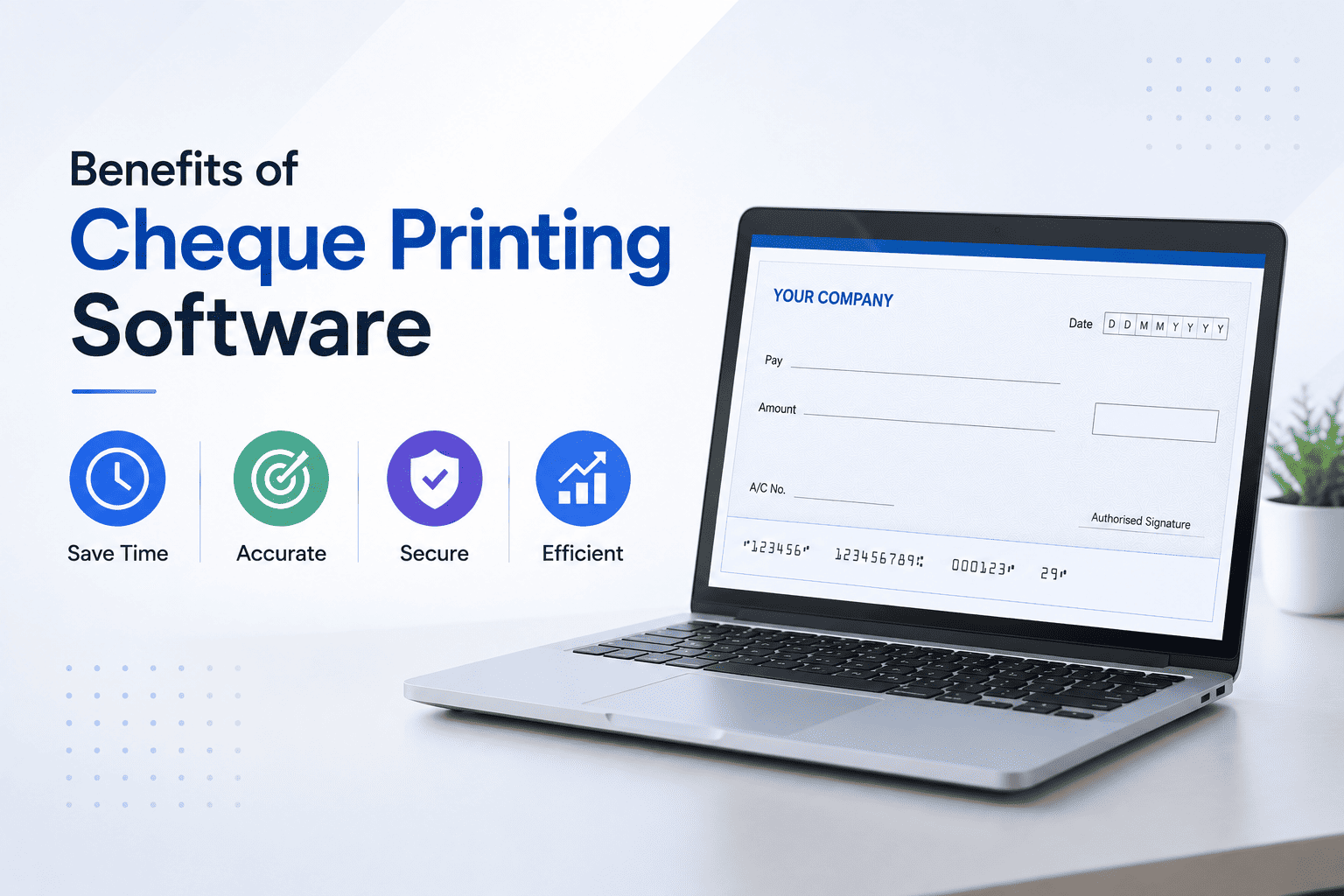
That is why most businesses use dedicated cheque printing software. These tools have pre-set templates for every bank. You just enter the details once, and the software aligns everything perfectly.
Some good options:
- Cheqaat (built by TROJAN IT SOLUTION PVT LTD)
- Online cheque printing tools
- Accounting software with cheque printing features
With good software, you can print a cheque in under 60 seconds. No alignment issues. No wasted cheque leaves. And the final print looks professional – like it came from a bank, not your home printer.
Step 4: Load the Blank Cheque Paper into Your Printer
Now comes the physical part.
Take one blank cheque leaf. Look at it carefully. Your cheque has preprinted information – bank name, branch address, and your account number.
On the back of the cheque leaf, there is usually a small arrow or a printed line showing which side goes up. Follow that.
Quick printer settings:
- Place the cheque face UP in the paper tray
- Adjust the paper guide so the cheque sits straight
- Go to printer settings on your computer
- Select "Paper Type" as "Plain Paper" or "Thick Paper" (if your printer has this option)
- Select "Paper Size" as "A4" or "Letter" depending on your cheque size
Do a test print on plain paper first. Hold the plain paper against your blank cheque. Hold it up to a window or light. See if everything aligns correctly.
If it looks good, load the actual cheque leaf and print.
Step 5: Review and Print
Before you hit that print button, review everything one last time:
- Is the payee name spelt correctly?
- Is the date correct?
- Do the numbers match the written amount?
- Is your signature area empty? (Never print your signature – always sign manually.)
Print one cheque first. Check it under good light.
- Is all text inside the boxes?
- Is the code area at the bottom clean? (Printer ink should NOT touch this area)
- Is the print dark and clear?
If everything looks good, congratulations. You have successfully printed your first cheque.
Sign it. Hand it over or mail it. Payment done.
Common Mistakes to Avoid
I have made all these mistakes. Learn from me.
Printing on the wrong side – Cheques have a front and back. Print always on the front side. The side with the bank logo and your account number.
Using the wrong paper size – Most cheques are slightly smaller than A4. Set your printer to "A4", or your cheque will print off the edge.
Forgetting to leave signature space – Keep the bottom-right area empty. That is where you will sign manually.
Writing the amount in words incorrectly – Always start from the left edge. Always end with "Only". Never leave gaps.
Not testing first – always test on plain paper. A misprinted cheque leaf is wasted.
Why Printed Cheques Are Better Than Handwritten
You might be thinking, "Why go through all this trouble?" Just write the cheque by hand.
Here is why printing wins:
| Handwritten | Printed |
|---|---|
| Takes 3-5 minutes per cheque | Takes 60 seconds |
| High chance of spelling errors | Zero spelling mistakes |
| Looks amateur | Looks professional |
| Difficult to read amount in words | Crystal-clear text |
| No record automatically saved | Software saves all payment history |
For one cheque, handwriting is fine. For five cheques, you start feeling the pain. For fifty cheques every month? Handwriting is impossible.
Businesses that print cheques save an average of 2-3 hours every single week. That time goes back into growing their business.
Frequently Asked Questions
Can I print cheques on a normal printer?
Yes. Any standard inkjet or laser printer works perfectly fine. You do not need a special "cheque printer".
Do banks accept printed cheques?
Absolutely. Banks only care about the code at the bottom, your signature, and the account details. Printed or handwritten – both are valid.
Is cheque printing software expensive?
Not at all. Many tools start at free or very low cost. Some accounting software includes cheque printing as a built-in feature.
What if my cheque prints misaligned?
Adjust your printer margins or switch to dedicated cheque printing software. Software tools handle alignment automatically for each bank.
Final Thoughts
Printing a cheque is not complicated. You just need the right approach.
Start with a template or software. Fill in the details carefully. Align your paper correctly. Do a test print. Then print your final cheque.
The first time you do this, it might take 10-15 minutes. By your fifth cheque, you will be done in under two minutes.
And once you experience a perfectly printed cheque – no scratching, no rewriting, no wasted leaves – you will never go back to handwriting again.
Ready to stop writing cheques by hand? Download Cheqaat for free today and see how easy it is to print perfectly aligned cheques in less than 60 seconds.
Built by TROJAN IT SOLUTION PVT LTD